

Notifications Summary - (External)
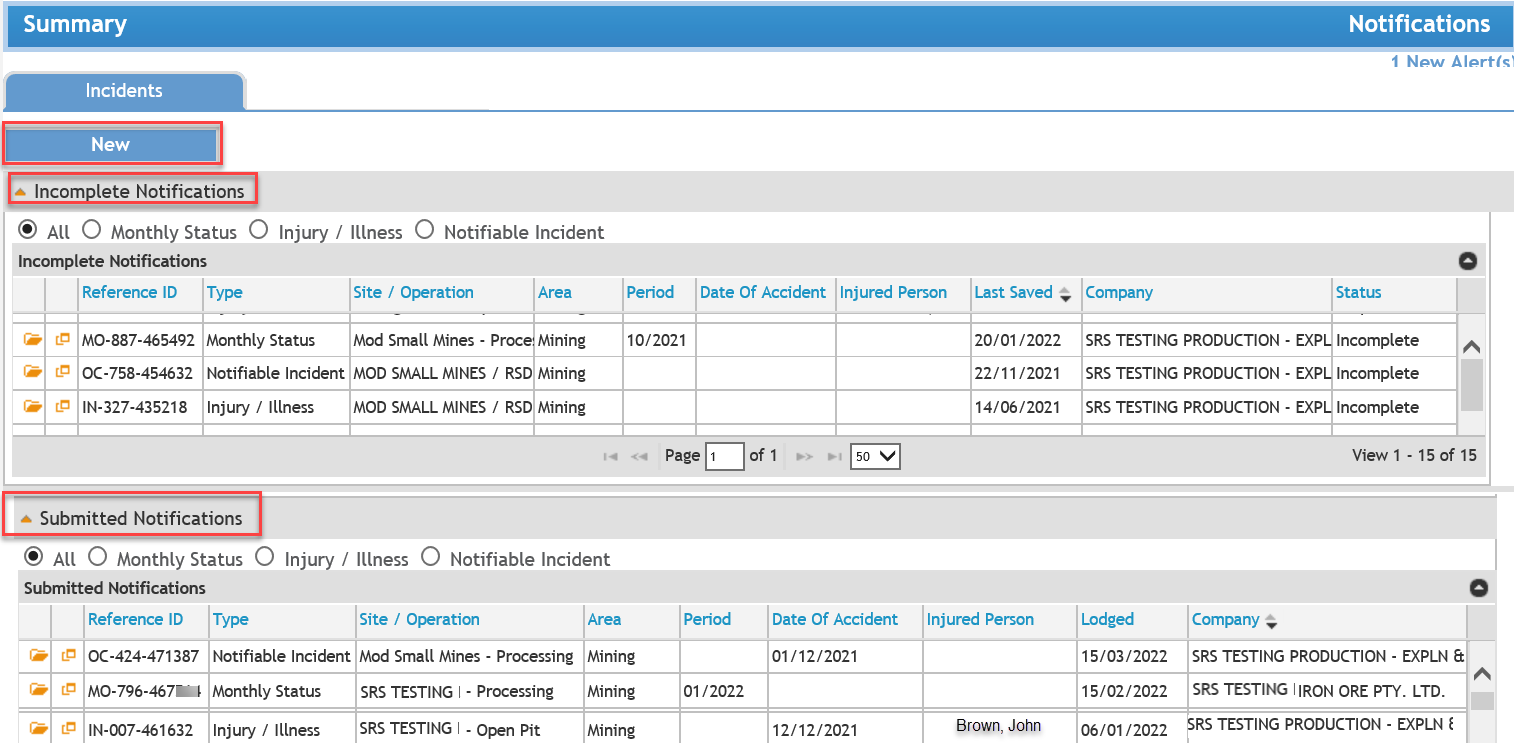
The Notifications summary (Incidents tab) houses information for the submission of Notifiable Incidents, Injury/illness and Status Reports (mining and exploration).
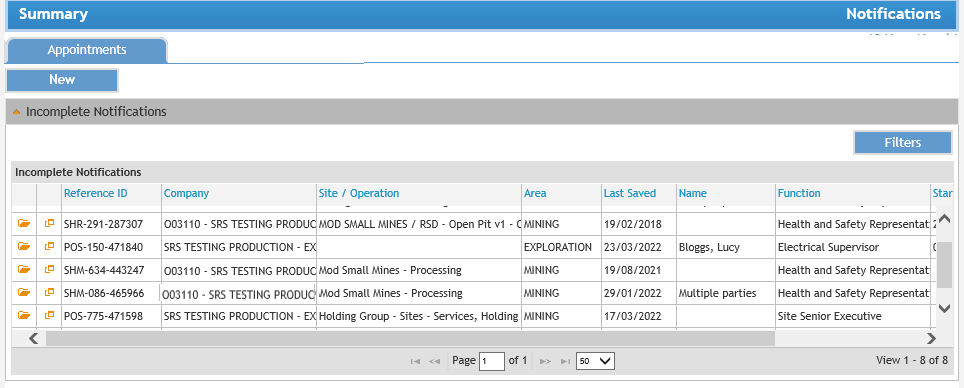
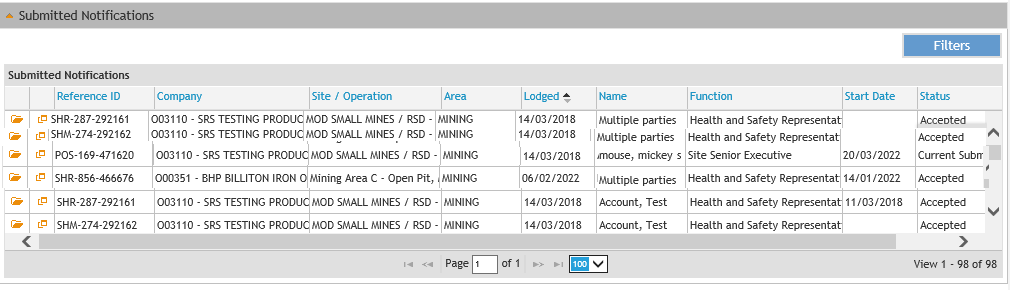
The Notifications summary (Appointments tab) houses information for the submission of Statutory Appointments and Health and Safety Representatives.
External users will require SRS access and security roles in each type of submission. Contact your SRS Company Administrator at your mine operation or Exploration Company.
INFORMATION POST- WHSA2020 (Work Health and Safety Act 2020)
Notifiable Incidents (NIRF)
• Notifiable Incidents up to 30/3/22, must be lodged under MSIA 1994. Ref to the Lodgement page.
• Notifiable Incidents on or after 31/3/22, must be lodged under WHSA 2020. Ref to the Lodgement page.
Injury Report Form (IRF)
From 31/3/22, the (auto generated) Injury Report Form (IRF) can be submitted to the Department, one (1) day following the submission of the Notifiable Incident Report Form (NIRF) for the associated injury.
From 31/3/22 you will no longer be able to select Injury Report Form from the dropdown for incidents created 'on or after 31/03/22'. The IRF(s) will be automatically generated on the submission of a Notifiable Incident Report Form, for the associated injury(s).
Industry can only create a manual IRF (i.e. stand-alone injuries) from the lodgemet page for incidents selected upto 31/03/22.
Status Reports
Industry can submit (monthly) status reports up to end March 2022.
From 1/04/2022, Status Reports are required to be submitted on a quarterly basis i.e. the first report will be for the quarter Apr-June 2022
More information on status reports can be found on the Department website:
Status Reports quarterly Notifications under the new WHS - Guidance for Mining and Exploration:
https://www.commerce.wa.gov.au/publications/changes-status-reporting-requirements-under-whs
Mines safety levy for mining and exploration:|
https://www.commerce.wa.gov.au/worksafe/mines-safety-inspection-levy
Incidents
Click the here for information on how to create an Incident / Injury / Status Report. This takes you to the Lodgement page.
Appointments
Notification of Incidents
Click the following links for webhelp information:
Notification of Appointments
Click the following links for webhelp information:
 Previous Page